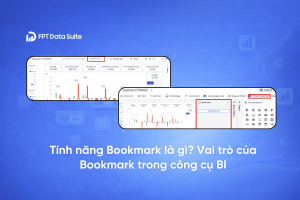
Bookmark is an useful function which allows users to capture the display state of a Report Page, including showing or hiding components as needed. This article will guide you on how to initialize and operate Bookmarks to optimize your data analysis experience.
How to Initialize Bookmarks (For Report Designers)
To begin, the designer must activate the feature to open the configuration workspace.
1. Create a Bookmark
Open the Bookmark feature on the Report Page. The Report Designer turns on the “Show bookmark” feature in the top corner to activate it. Once activated:
- The Report design interface will display an area for managing and configuring Bookmarks.

- The report interface will display a list of bookmarks at the top for end-users to select.

2. Create a New Bookmark
Click the “Add bookmark” button in the Bookmark management area to create a new one. A configuration panel will appear for setting up detailed information.
3. Name the Bookmark
Enter a descriptive name for the Bookmark in the “Bookmark name” field (e.g., “Departmental Report”, “Revenue Overview”, etc.). This helps users easily identify and select the correct Bookmark during use.
4. Select the Visuals to Display
Under the “Choose Visuals to display” section, users will see a list of Charts, Tables, Slicers, and other components currently on the Report Page.
- Select
 the components users want to display when selecting the Bookmark
 - Deselect
 the components users want to hide.
5. Save Bookmark
Once the configuration is complete, the designer saves the Report Page to store all newly created or updated Bookmarks.
Report design can check Bookmark with this icon  or delete by using this icon
  .
.
How to use Bookmark
Bookmarks can be used in several flexible ways:
- Direct Use (Independent): Users can select an existing Bookmark directly from the interface to switch the Report Page to the saved configuration (showing/hiding components as pre-set).
- Combined with Buttons: Integrating Bookmarks with Buttons on the report allows users to simply click a button to quickly view a corresponding Bookmark. This ensures a smooth, intuitive viewing experience that does not depend on the Bookmark panel.